Browse KPIs
Alert checks stats
Issues dashboard is stats oriented.
Its purpose is to ease alert reviewing by tracking down its progression:

Stats can be shown by app, owner or even status, reviewed or not.
Click on a panel title to obtain the list of alerts related to each stat:
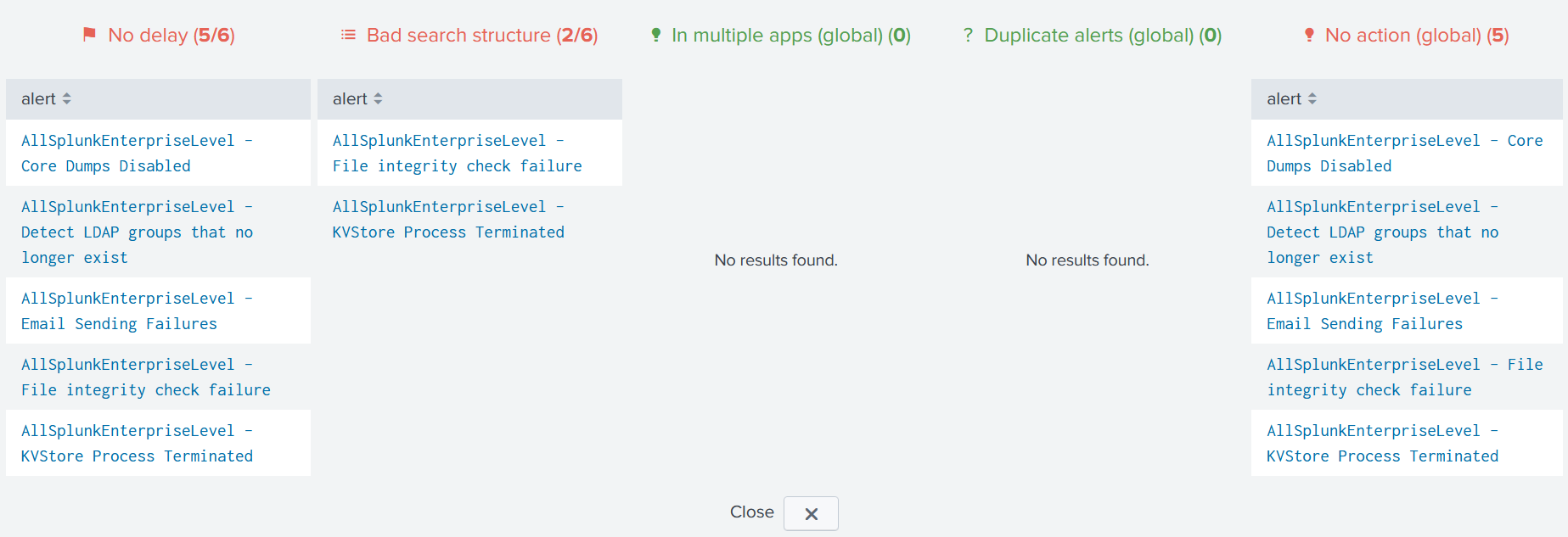
Use the Close button to hide the panel back.
Additional checks
Besides stats on defined Alert checks, 3 additional checks are provided:
| Check | Description |
|---|---|
| In multiple apps | The same alert is configured in multiple Apps |
| Duplicate alerts | Several alerts share the same search query, schedule time and time range |
| No action | Alert has no configured action |
| Close names | Alerts with close names |
In multiple apps
This is not a big issue since Splunk merges the parameters across different Apps but it can lead to confusion when editing the alert so it should be fixed.
Duplicate alerts
As it might indicate a duplicate alert - same alert, different name - it should be checked.
No action
This check discards alerts whose action resides within the search query (e.g. outputlookup). These alerts should be checked.
Close names
This check’s purpose is to spot alert having very close names to check for duplicate alerts.
Warning
These additonal checks are global, meaning dashboard’s top filters does not apply.
Tip
Click on an alert row to open it in the Inventory dashboard.