Review Alerts
Alert review happens from the Inventory dashboard.
Active alerts should be listed in the very first panel:
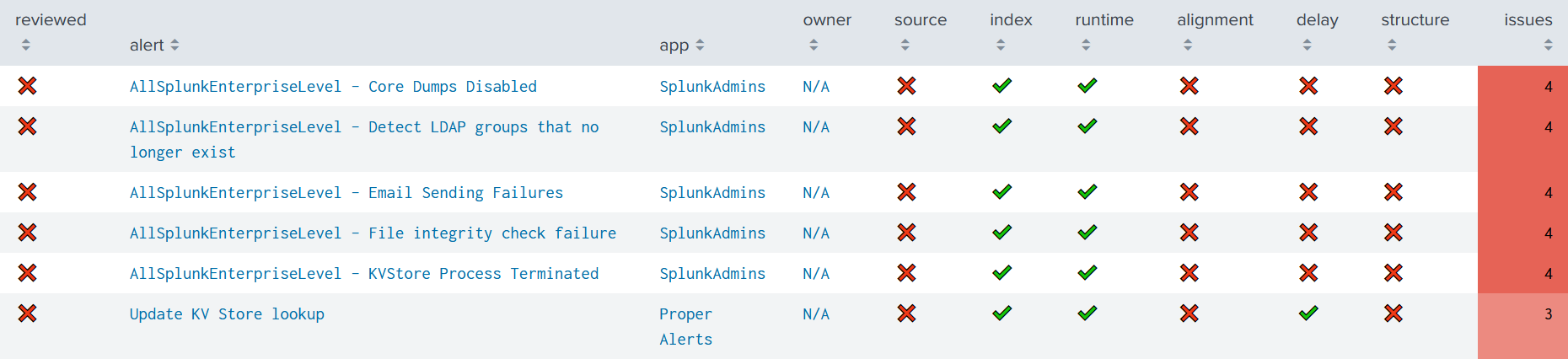
Use the filters to narrow down displayed alerts.
The ℹ️ button is a reminder of Alert checks definitions.
Table info
| column | description |
|---|---|
| reviewed | is the alert reviewed? |
| alert | alert name |
| app | alert app |
| owner | owner of the alert |
| source –> structure | is the check passed? |
| issues | # of failed checks |
To review an alert, click on its row to display its specifics in a new panel:
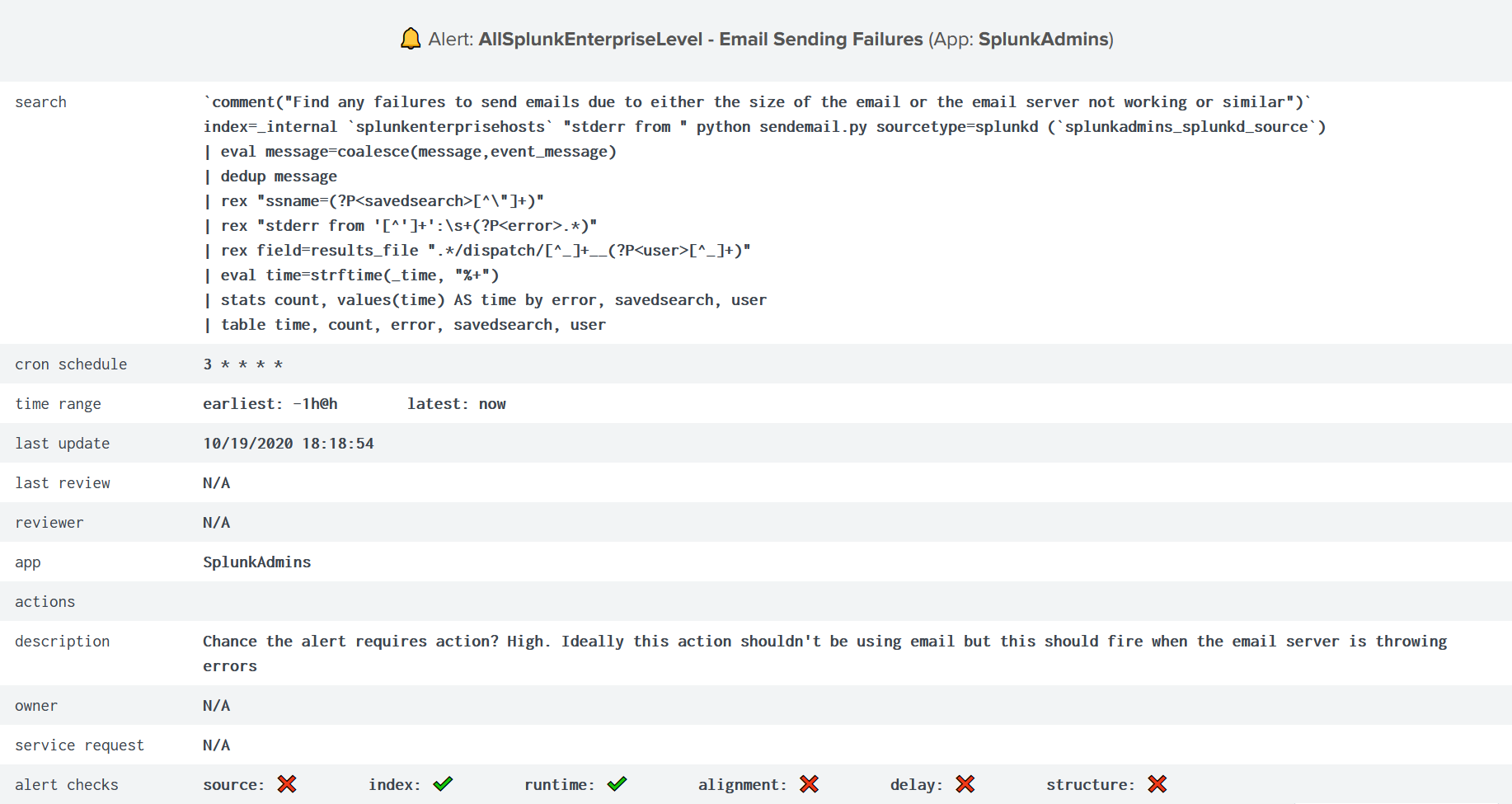
The Review alert section underneath provides interactive buttons:
🔍 ➫ alert’s search query in a new tab
📊 ➫ alert actions from scheduler logs in a dynamic panel
⚙️ ➫ edit the alert in its App context in a new tab
🚀 ➫ reload results
Reloading results
If you have just edited the alert - to specify an index for instance -
and you want the results to be refreshed right away, click the 🚀 button as it
launches the Update KV Store lookup alert in the background.
Whether automatic checks are passed or not, you can then update manual checks definitions from the Update data section.
To do so, update each manual check status by clicking either on ✔️ or ❌.
Note
Whatever manual check updated, current Splunk admin becomes alert’s reviewer.